![health-prime-logo.png]](https://blog.hpiinc.com/hs-fs/hubfs/health-prime-logo.png?height=40&name=health-prime-logo.png)
|
Purpose |
This SOP provides the general requirements for Health Prime’s escalation path. The At-Risk process is designed to understand our client’s objectives and expectations at a deeper level and encourage better collaboration. |
|
Scope |
This SOP applies to the Client Success Team and ITS Leaders who typically submit At-Risk tickets in HubSpot. |
Version History
|
Version # |
Date |
Author |
Summary of Changes |
|
1.0 |
03/22/2024 |
Caroline Balestra |
Initial version |
|
2.0 |
02/20/2025 |
Bilal Qureshi |
Added Watchlist and Overdue Invoices information |
|
3.0 |
01/20/2026 |
Bilal Qureshi |
Simplified the SOP |
Overview
The At-Risk process outlines how we handle client escalations or early signs of cancellation. Using a central intake in HubSpot, the Client Success team leads the effort to report, document and respond based on the type of escalation, aiming to retain the client. If the client still chooses to cancel, this is tracked through the At-Risk ticket process.
Benefits of the At-Risk process:
- Clear visibility into client escalations through a centralized intake managed by the Client Success team.
- Early warning triggers to create action plans with countermeasures to attempt to save the client.
- Standardized data feeds executive dashboards for better decision-making.
Initiate the Process
To initiate the At-Risk process, follow the steps below. This ensures proper tracking and workflow enrolment in HubSpot.
Step 1: Create an At-Risk Ticket in HubSpot
- Log in to HubSpot → https://app.hubspot.com/login
- Search and select the Company record for the At-Risk client.
- Click +Add under the Ticket section.
- In the ticket creation panel, fill in the following: fields with (*) are required.
|
Ticket Property |
Values |
|
Ticket Name* |
> At-Risk – BU – Company Name |
|
Pipeline* |
At-Risk Queue |
|
Ticket Status* |
Defaulted to Open |
|
Ticket Type* |
At-Risk |
|
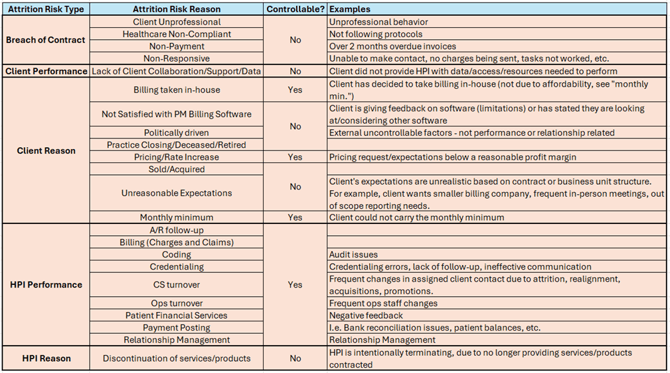
Attrition Risk Reason* |
Select from dropdown (Refer to Attrition Types & Reasons Table) |
|
Escalation Source* |
Client CS Team Operations |
|
Ticket Description |
Use SBAR format: |
|
Ticket Owner |
Defaulted to you |
|
Priority |
Optional |
|
Associate Ticket with Contact |
Select contact for the practice |
|
Associate Ticket with Company |
Auto-populated |
|
Add Timeline |
Do not check the box |
⚠️ Note:
- Important: If a contact is linked to more than one company record, the system (via API) will automatically associate all related companies to the ticket. To avoid unintended associations, it is highly recommended that you carefully review all company associations before adding and saving the Attrition Risk Reason.
- Add Watchlist - when there is an internal escalation by the CS or the Ops team for either metric concerns, instinctual relationship strain, or getting ahead of a real escalation from client which would be a formal At Risk.
- Adding the Attrition Risk Reason will enrol your At-Risk/Watchlist ticket in the HubSpot Workflow.
- Any changes to the Attrition Risk Reason will require HubSpot support ticket via PrimeSupport “Properties & Objects “ form.
Step 2: Populate the At-Risk Ticket
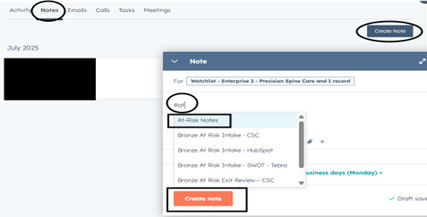
- Create At-risk Notes - In the ticket body (middle section) go to “Notes”
- Click on “Create Notes”

- Type “#At-Risk Notes” in the body → select the At-risk Notes from the drop-down.
- Fill in free text lines.
- Click Save Note
- Click on “Create Notes”
- Attach/log any additional communications:
- Cancellation emails
- Client complaints
- Logged calls, etc.
⚠️ Note: We suggest you refresh the screen to ensure the below properties have been populated through automation: Attrition Risk Type, Cancellation Controllable (Yes/No) & Client Status on Company record = At-Risk. If values do not populate: Contact HubSpot Support via PrimeSupport under “Workflows & Automations” form.
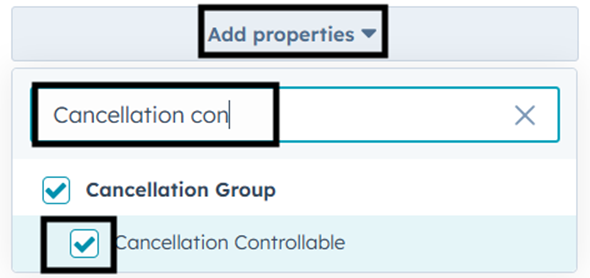
⚠️ Note: If a property is not in your view, go to Actions > Customize Properties
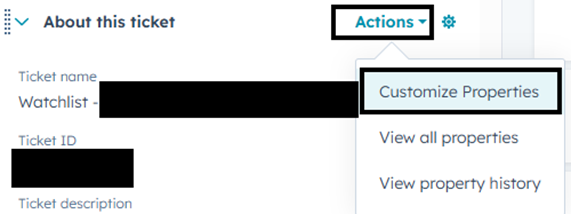
> Add Properties > Search and select the property > Save.
Step 3: Follow the At-Risk Action Process
- Take actions based on Attrition Risk Type & Risk Reason
- Follow weekly check-ins for At-Risk clients
- If unsure about actions → Contact leadership
Step 4: Resolve At-Risk Ticket – Client Saved or Not Saved
- Search and select the Company record for the At-Risk client.
- Select the At-risk ticket under the Ticket section
✅ If Client is Saved:
- CS team sets Customer Saved = Yes
- Through Automation:
- Client Status on Company updates to Monitor for 30 days
- After 30 days, Client Status changes to Active
- Cancellation Approval = No
- At-Risk Ticket is closed
⚠️ If client becomes At-Risk again during Monitoring period → Create a New At-Risk Ticket
❌ If Client is Not Saved:
- CS Team sets Customer Saved = No
- Upload written cancellation notice
- Create Early Termination Fees Note → In the ticket body (middle section) go to “Notes”
- Click on “Create Notes”

- Type “#ETF” in the body → select the Cancellation ETF Review from the drop-down.
- Fill in free text lines.
- Click Save Note
- Click on “Create Notes”
- Enter RCM Cancellation Date (See below note and update accordingly)
- Cancellation Approval = Yes
- Ticket auto-closes when RCM Cancellation Date is entered
- Client Status → Automatically updated to Cancellation in Progress
- On RCM Cancellation Date → Status changes to Cancelled
⚠️ Note:
RCM Cancellation Date – RCM Cancellation Date refers to the final date on which Health Prime will cease all work on a client account. For RCM clients, this marks the end of the AR wind-down period, while for ITS clients, it indicates the complete termination of all services. After this date, no operational, technical, or administrative work of any kind will be performed on the account. This includes billing, follow-up, support, or system access. All teams must ensure that the account is fully deactivated, and no further activity occurs beyond this date.
If RCM Cancellation Date Changes or If Cancellation is Rescinded after the At-risk Ticket is closed
- CS team submits a HubSpot support ticket via PrimeSupport under “Properties & Objects “ form to update the date.
- Add a Note in the ticket explaining the change
Outstanding Invoice – If there is an outstanding invoice for the client then the at-risk ticket should not be closed until we have a final determination on the outstanding invoice amount as to whether it is fully paid or the account is being sent to collection. We will also need approval from Finance department to close the at-risk ticket.
Attrition Risk Types & Attrition Risk Reasons
The below table outlines the list of Attrition Risk Types and the applicable Attrition Risk Reason(s) for each situation. The Attrition Risk Type will be automatically populated based on the Attrition Risk Reason selected.